

TMV II Cover Image Guidelines
How to create a cover image for your Midnight Vault II story submission.

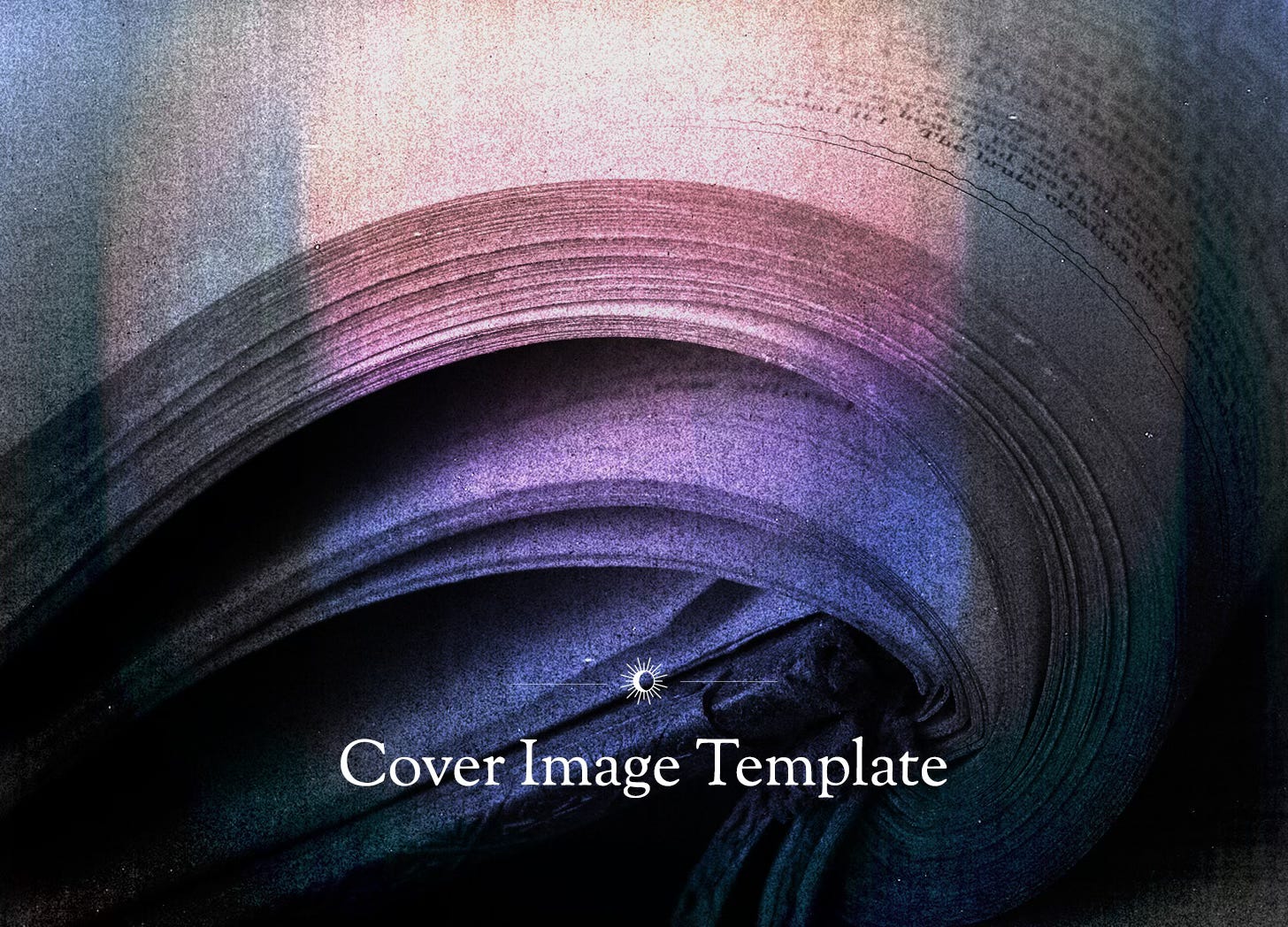
These guidelines have been provided to aid you in styling the cover photo of your Midnight Vault II submission. Following these guidelines ensures a cohesive look and feel across the entire Midnight Vault II collection.
This article covers:
Two Ways to Style Your Image
Please choose one of two ways to style your story’s cover image:
Download the Photoshop template | Simply add your photo and update the story title. IMPORTANT: This option requires access to Adobe Photoshop* as well as a basic understanding of how to edit a layered file and export the final asset.
OR - Send us your image and title | We’ll take care of the rest. Message
here on Substack, or on the TMV Discord. Please provide the highest-resolution image possible (we recommend a minimum size of 1500px wide). If the image is located on a free stock photo site like Unsplash, simply share a link to the image along with any notes on preferred cropping.
Reach out to
with any questions.*UPDATE: Looking for a free image editor you can use to edit this template? pointed us to Affinity as a great option.
About the Template
Our intent for the design was to create something that captured the same mysterious, gritty vibe of the primary TMV II artwork but that also played well across genres—something that looked as at home with a horror story as with a sci-fi tale.
To achieve this look, the template uses the same gritty texture and blue/purple gradient. An alternative typeface was selected (Sorts Mill Goudy) to provide a no-cost option for all participants.
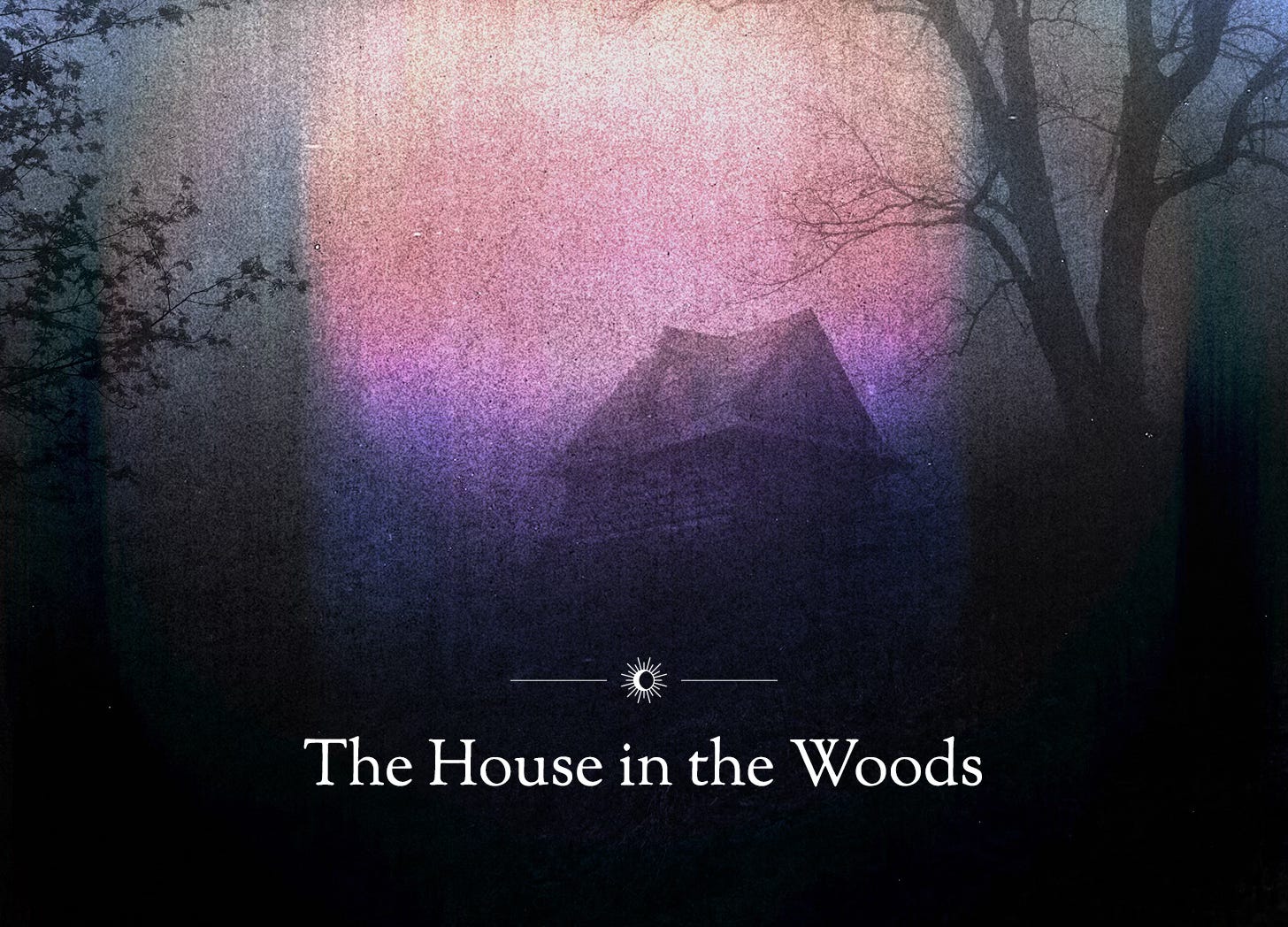
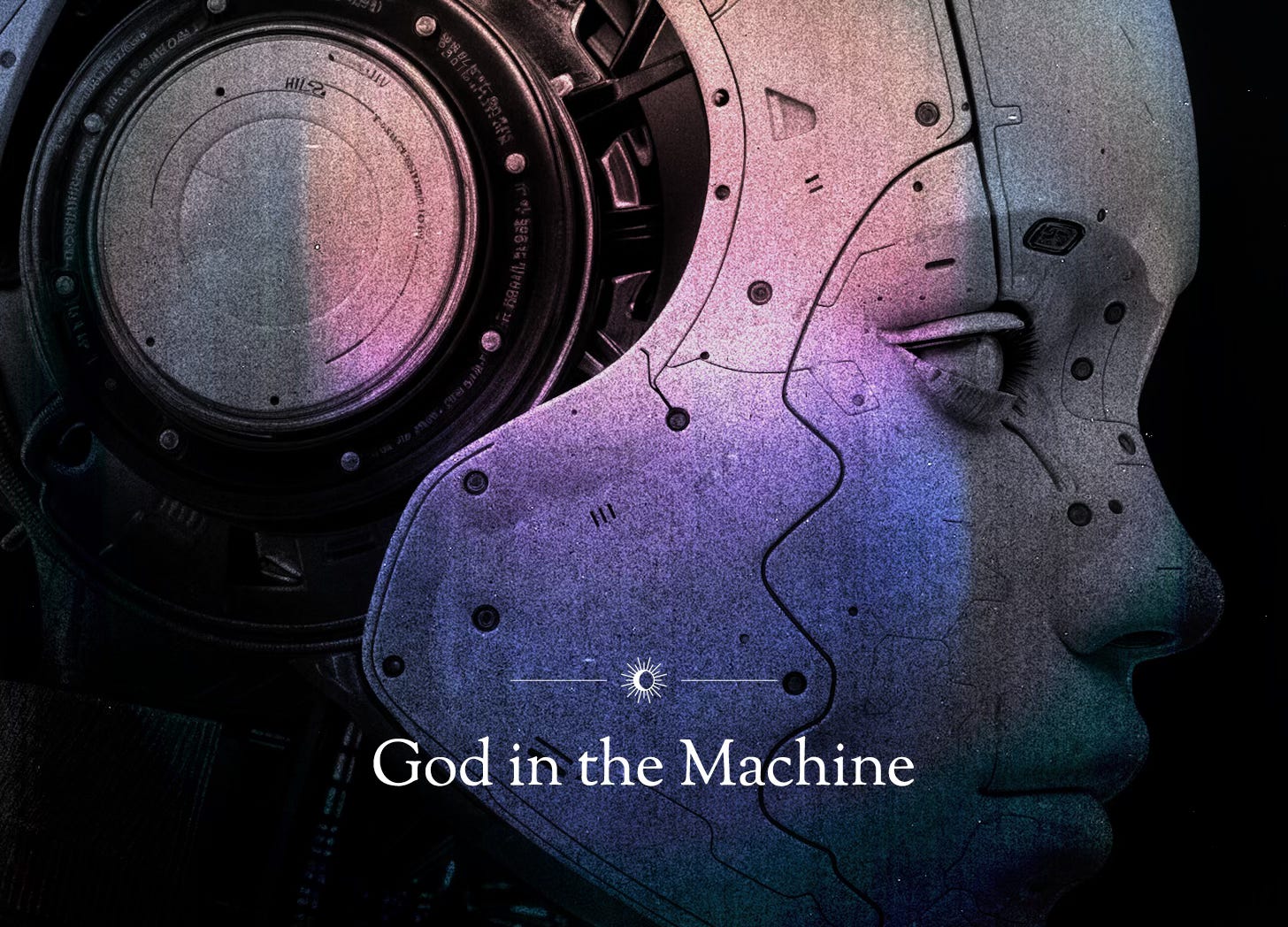
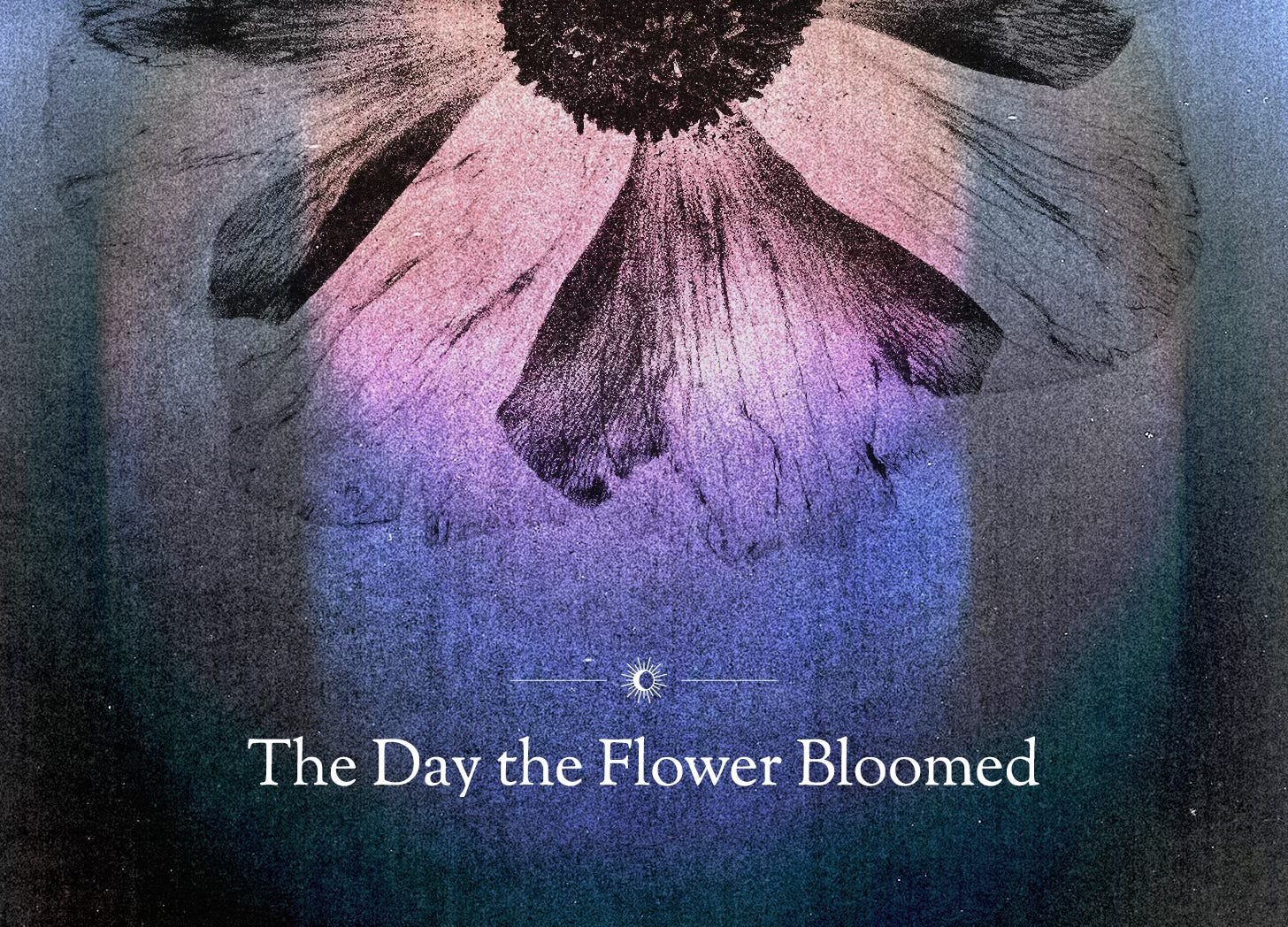
Here are a few examples of the template in action using free, high-resolution images from Unsplash:
How to Use the Template
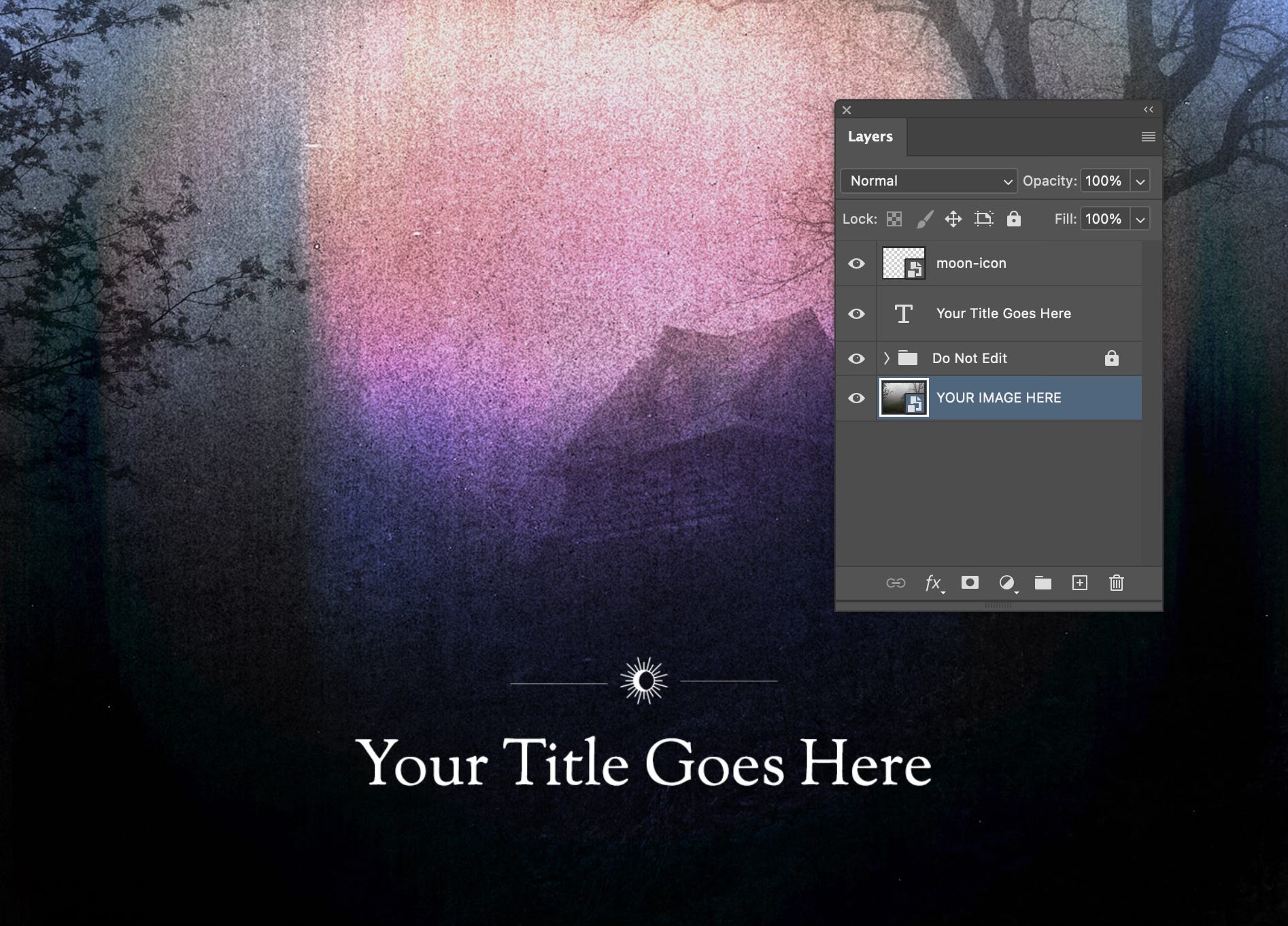
Open the file, then open the smart object titled “YOUR IMAGE HERE.”
Paste or place your image in the smart object. Scale and position to your desired crop.
Save and close the smart object.
Export the image as a PNG or JPG using the highest quality.
Add the image to your story.
DIY Spec
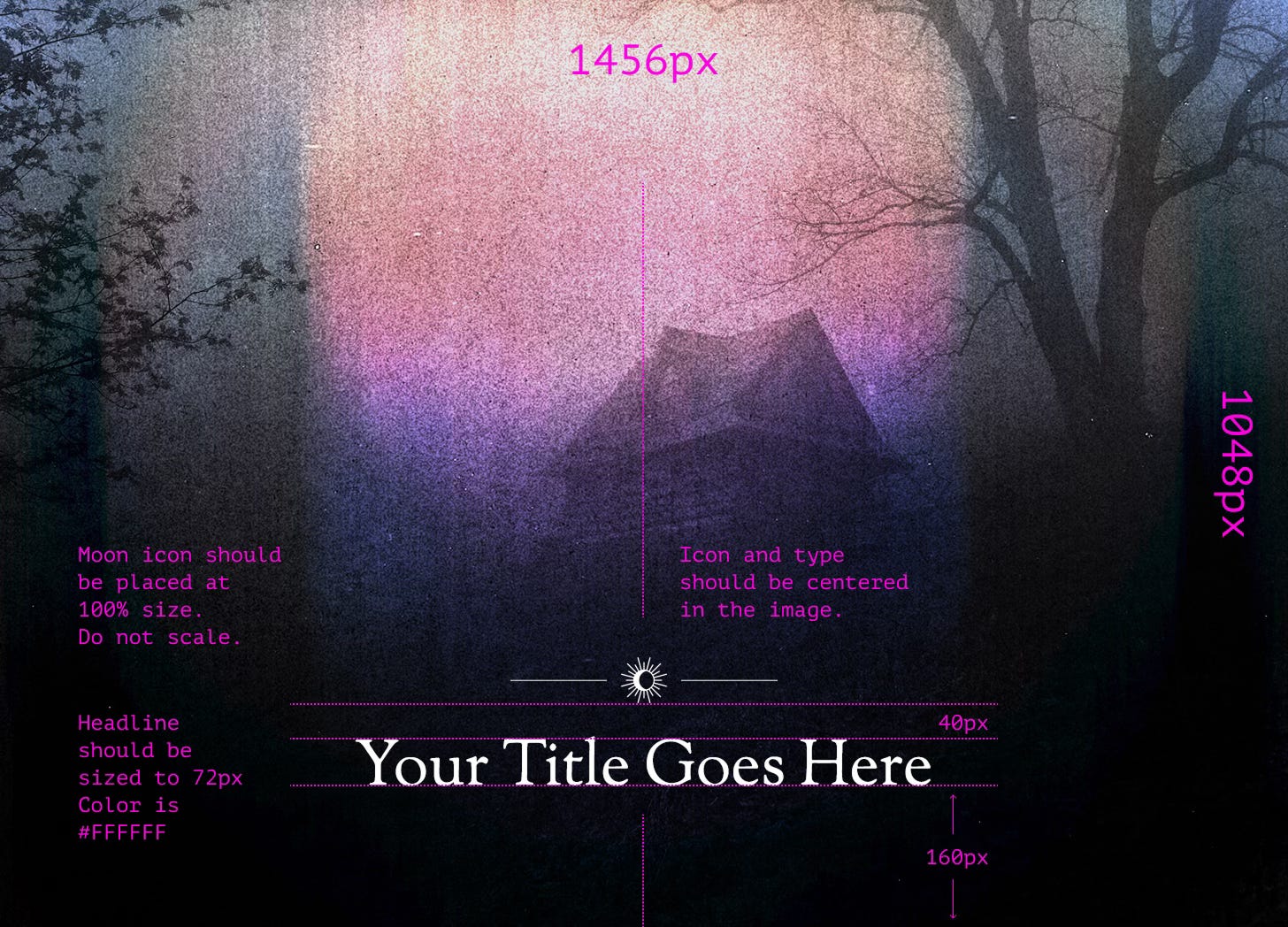
If you’d prefer to create your own image, at a bare minimum, we ask that you use the typeface and moon icon divider. See image below for size and position.
Downloads
Photoshop Template
Built to the recommended Substack post size of 1456 x 1048px.
You must have access to Photoshop and a basic understanding of how to edit a file and export the final asset.
Download the Photoshop template
—
Google Font
In order to edit the template, or if you’d like to use the typeface in your own design, you’ll first need to download the Sorts Mill Goudy font files and install them on your computer.
Download Sorts Mill Goudy from Google Fonts
–
Moon Icon
This asset is available to anyone who wants to go more DIY on their cover image.
Gorgeous and absolute genius making a photoshop template, thank you!
We’re not worthy for such things. I hope my image will work out ok giving it the MVII treatment.